
Trading platforms are the trader’s cockpit. Without them, it’s like trying to fly a plane with no controls. The three most popular trading platforms used worldwide are MetaTrader 4 (MT4), MetaTrader 5 (MT5), and cTrader.
If you’re confused about which one to use or how to get started, don’t worry—you’re about to get a simple, step-by-step walkthrough.
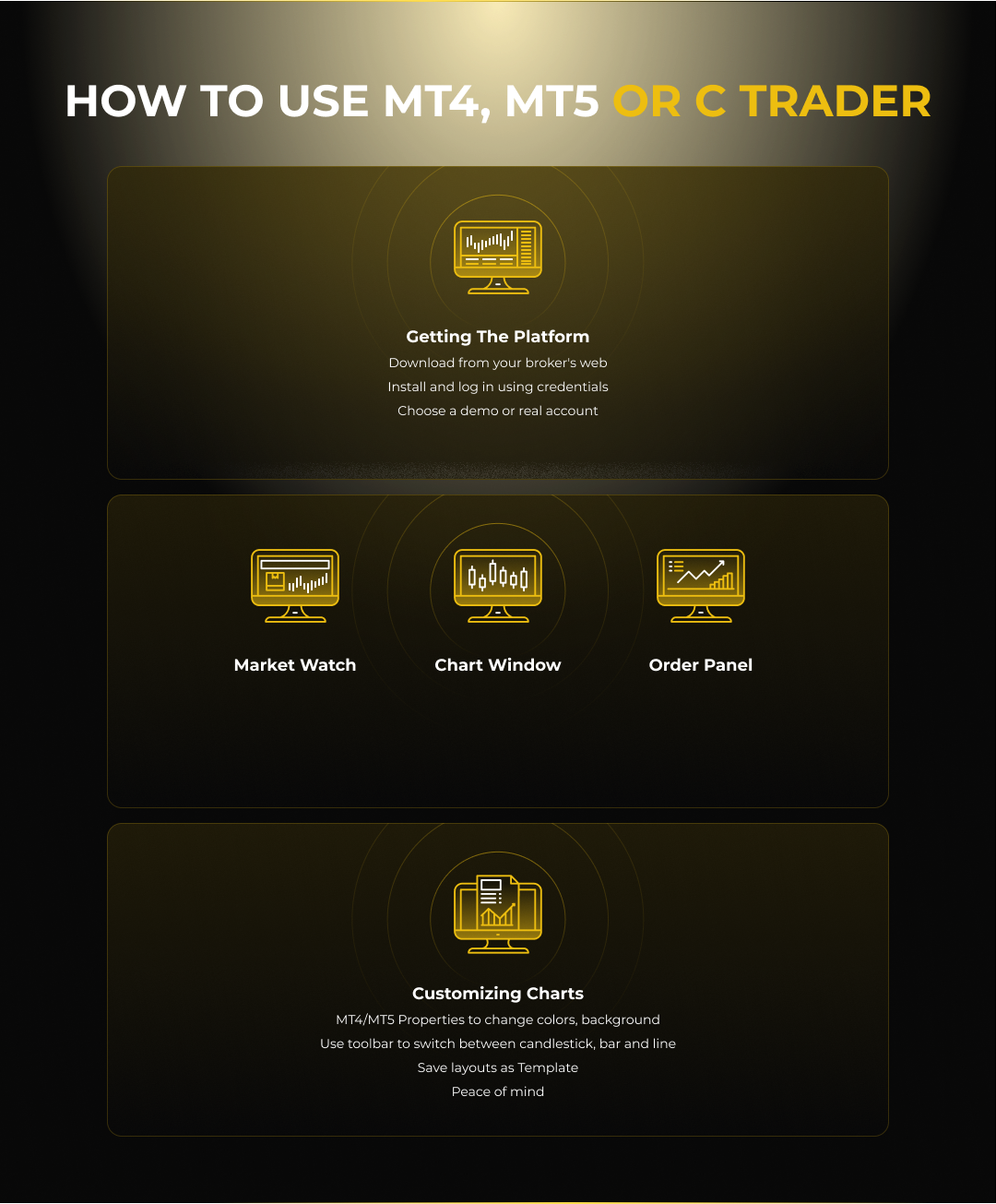
Step 1: Getting the Platform
MT4 & MT5
- Download from your broker’s website (don’t just Google “MT4 download”—always use your broker’s link so it connects properly).
- Install it like any normal software.
- Login using the credentials your broker sent (you’ll usually get two sets: demo and real).
- Choose a server—demo for practice, real when you’re live. Follow the credentials you received from your broker.
- Download the platform directly from your broker or from the official Spotware cTrader site.
- Install it—it’s lightweight and quick.
- Login using your cTrader ID (same login works across brokers that support cTrader).
- Choose “Demo” or “Live” environment.
Step 2: Understanding the Layout
MT4/MT5 – The Classic Workspace
- Market Watch (top left): List of currency pairs and instruments. Right-click to “Show All.”
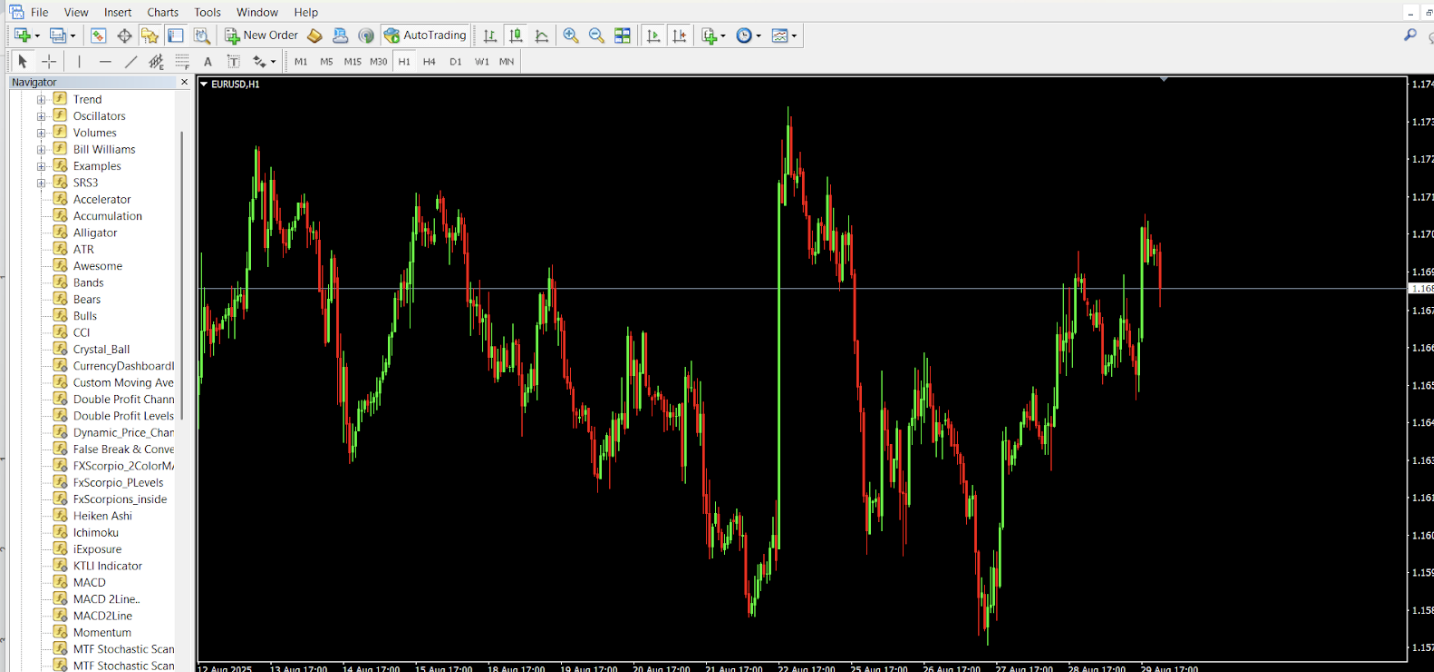
- Navigator (bottom left): Access your accounts, indicators, Expert Advisors (EAs), and scripts.
- Chart Window (main area): Where price action comes alive. You can open multiple charts.
- Toolbars (top): Buttons for timeframes, drawing tools, chart styles (candlesticks, bars, lines).
cTrader – The Modern Workspace
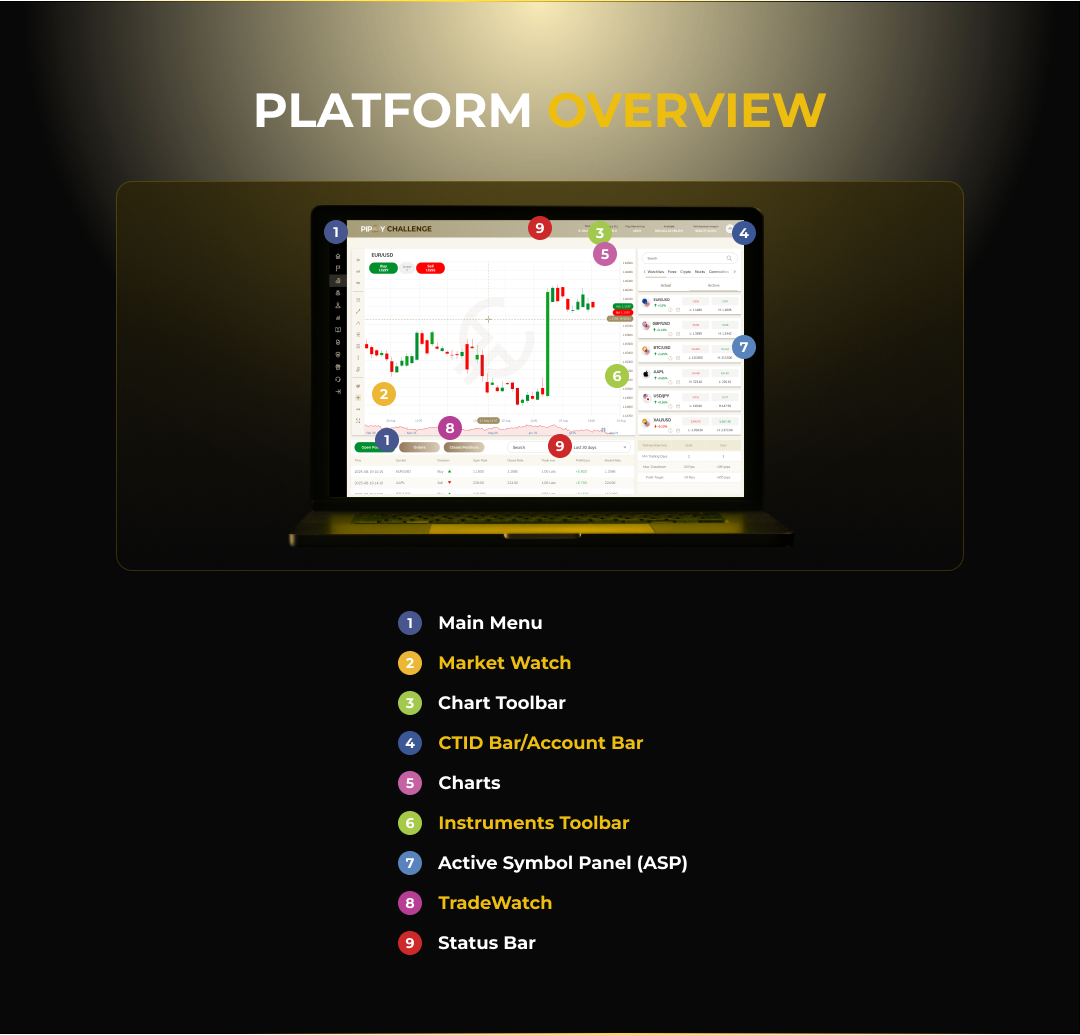
- Watchlist Panel (left): Drag and drop symbols into charts.
- Main Chart Area: Large, clean charts with easy customization.
- Order Panel (bottom/right): Place trades directly without endless menus.
- Detachable Panels: You can “pop out” charts into separate windows—amazing if you use multiple monitors.
Step 3: Customizing Charts
In MT4/MT5
- Right-click → Properties → Change colors, background, grid lines.
- Use the toolbar to switch between candlestick, bar, and line charts.
- Save your favorite layout as a Template so you can reuse it anytime.
In cTrader
- Choose from many chart types: candlesticks, Heikin Ashi, Renko, Range, Tick, etc.
- Drag to zoom in/out, or scroll your mouse wheel.
- Save Chart Views to quickly load your favorite setup.
Step 4: Adding Indicators
MT4/MT5
- Go to Insert → Indicators (e.g., Moving Average, RSI, MACD).
- Drag from the Navigator panel into your chart.
- Adjust settings (periods, colors, etc.).
cTrader
- Click Indicators above your chart.
- Choose from ~70 built-in ones (ATR, Bollinger Bands, etc.).
- Apply and adjust directly on the chart.
Step 5: Placing Trades
In MT4/MT5
- Click New Order or press F9.
- Choose your symbol (EUR/USD, Gold, etc.).
- Set Volume (lot size).
- Add Stop Loss and Take Profit if you want.
- Click Buy or Sell.
In cTrader
- Simply click Buy or Sell from the order panel.
- Drag your SL/TP lines on the chart itself.
- For pending orders, right-click on the chart at your desired entry.
Step 6: Automation
- MT4/MT5: Uses EAs (Expert Advisors) coded in MQL4/MQL5. Huge online library of free and paid robots.
- cTrader: Uses cBots coded in C#. More modern, but fewer ready-made bots compared to MetaTrader.
Step 7: Mobile Trading
- MT4/MT5 mobile apps → Simple, but powerful enough to place trades, check charts, and manage positions.
- cTrader mobile app → Sleek, faster, and with more charting options than MetaTrader apps.
Pro Tips (Trader-Friendly Wisdom)
- Always practice on Demo first—don’t rush into live.
- Use Stop Loss—never leave trades naked.
- Journal your trades—not just wins/losses, but the why.
- Experiment with templates—make the platform look “yours.”
- Test automation in small doses—robots are tools, not magic money machines.
Final Thoughts
- MT4 → Perfect for beginners.
- MT5 → Advanced version with more markets and tools.
- cTrader → Modern, sleek, great for scalpers and visual traders.